![Email Signature_CM.png]](https://kb.connectedmanufacturing.com/hs-fs/hubfs/Email%20Signature_CM.png?height=40&name=Email%20Signature_CM.png)
Root cause: The insite.mdb file which was saved in Management Studio previously is not present when Management Studio is started.
Error in Event Logs:
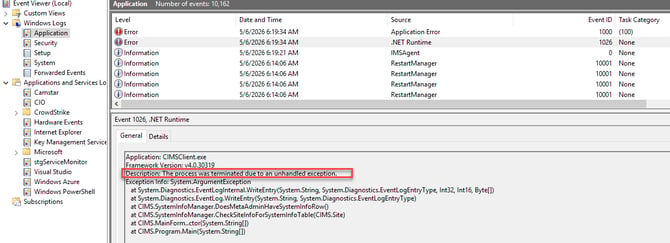
<Event xmlns="http://schemas.microsoft.com/win/2004/08/events/event"> - <System> <Provider Name="Application Error" /> <EventID Qualifiers="0">1000</EventID> <Level>2</Level> <Task>100</Task> <Keywords>0x80000000000000</Keywords> <TimeCreated SystemTime="2018-08-06T19:41:46.356439700Z" /> <EventRecordID>4510</EventRecordID> <Channel>Application</Channel> <Computer>jsaunv7SU4-v2.CSISU.local</Computer> <Security /> </System> - <EventData> <Data>CIMSClient.exe</Data> <Data>7.5.6705.35201</Data> <Data>5af62842</Data> <Data>KERNELBASE.dll</Data> <Data>10.0.14393.1715</Data> <Data>59b0d106</Data> <Data>e0434352</Data> <Data>0000000000033c58</Data> <Data>514</Data> <Data>01d42dbd81c0f3f0</Data> <Data>C:\Program Files (x86)\Camstar\InSite Administration\CIMSClient.exe</Data> <Data>C:\Windows\System32\KERNELBASE.dll</Data> <Data>4f353baa-3fae-40ca-90b1-99947e9dd43d</Data> <Data /> <Data /> </EventData> </Event>
Solution:
1. Open a Command Prompt.
2. Execute the following command:reg query "HKLM\SOFTWARE\WOW6432Node\Camstar\Camstar InSite Common" /v TemplateDatabaseFile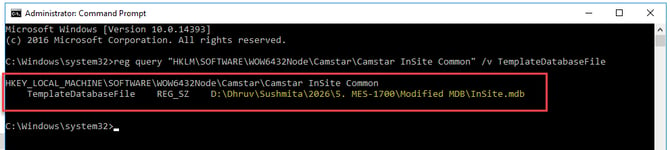
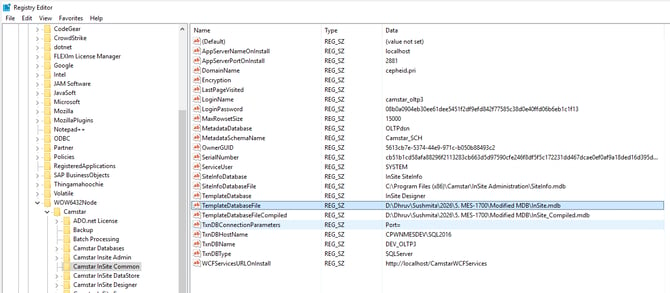
3. Verify the MDBs location. You will see that the path does not exist
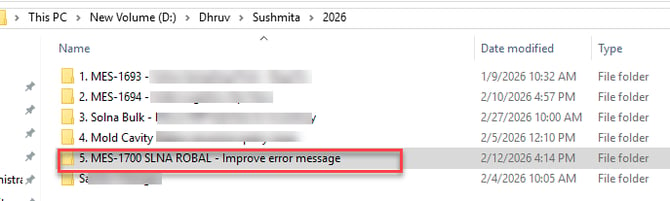
Sample scenario: The folder where the MDB is stored was renamed.
4. To resolve the issue, you can either rename the folder back to its original name or create a copy of the folder and assign it the original file name.
5. Open the Management Studio to test
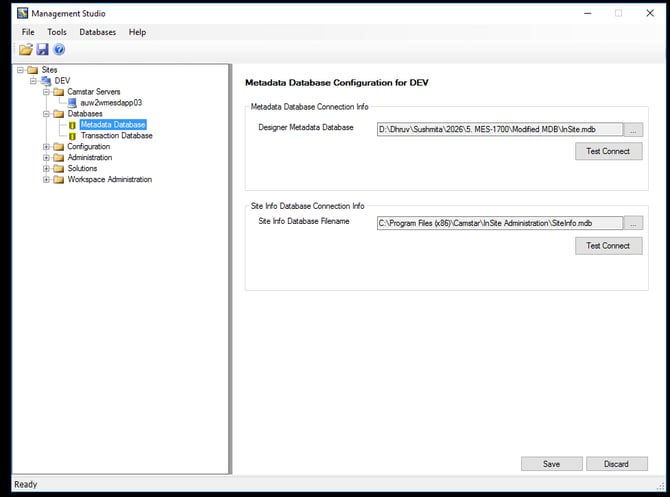
A valid MDB needs to exist at the path/filename output by the reg query command in your environment.
Related KB: https://support.sw.siemens.com/en-US/knowledge-base/PL8004793